
System images compatible with the 1st Generation Apple TV.

Scroll to the bottom to read about known issues before continuing.
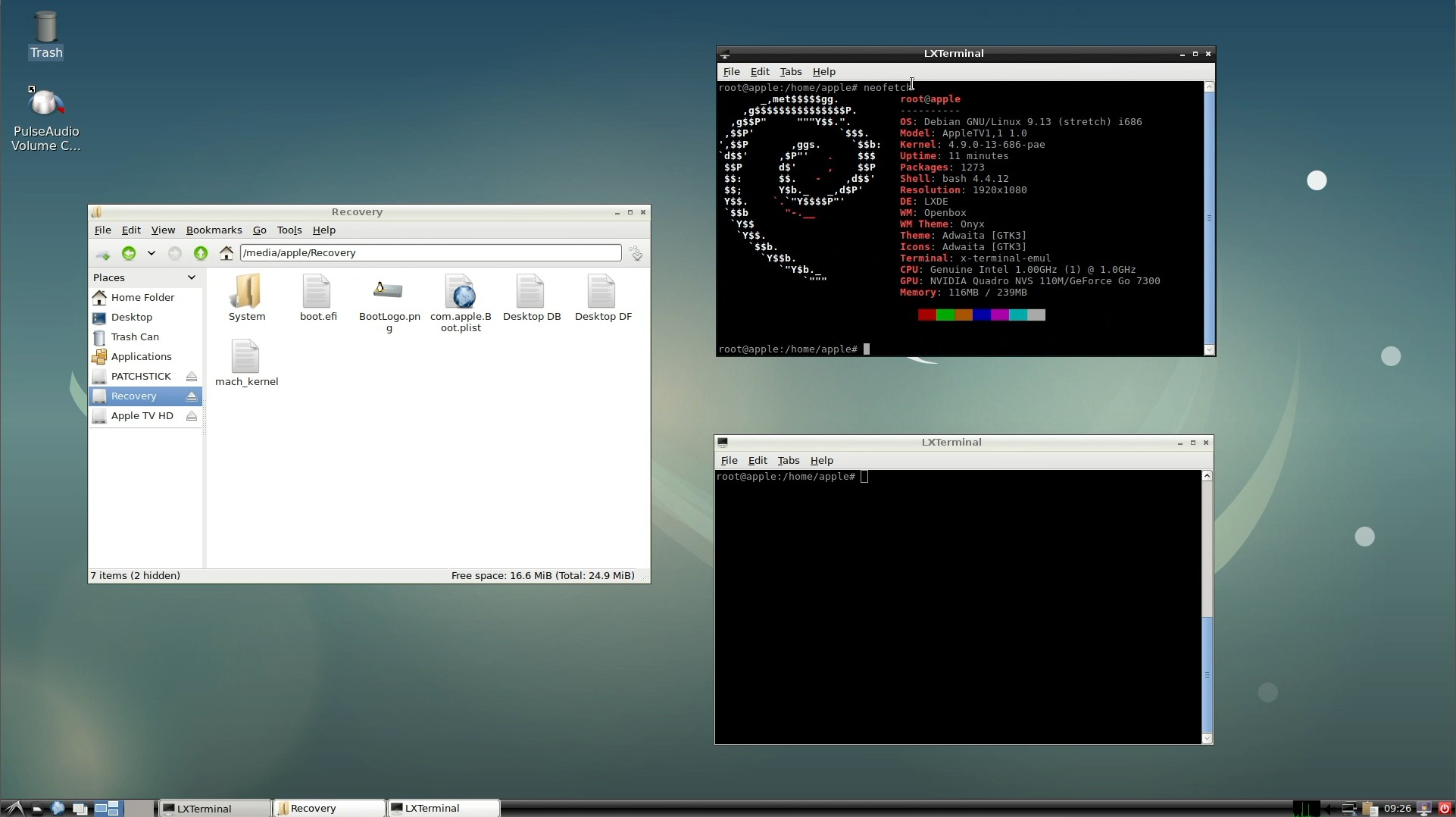
Bootable Live USB
stretch-gui-live.img.xz – 2.2GB
md5: b78e3a736d0314ac354545cbce7bbb56
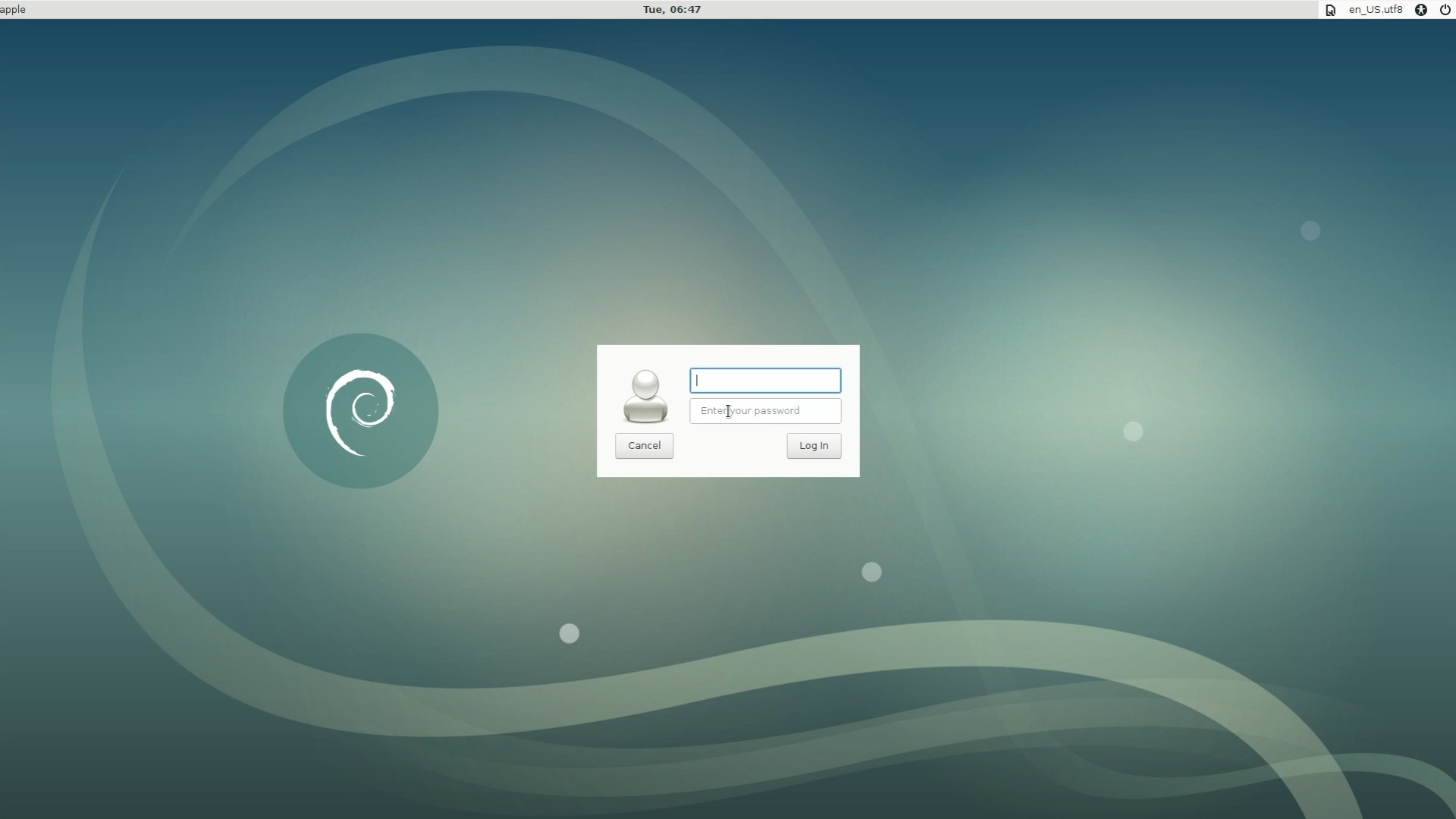
Write the image to a USB drive and boot the Apple TV to a Debian Stretch LXDE Desktop. The Apple TV’s internal hard drive is not modified. This can be used to write other images to the internal hard drive.
Debian Command Line
stretch-cli.img.xz – 850MB
md5: 588e28761d783f8494c46ed0ba88b169
Debian Stretch, no gui installed. This image has to be written to the internal hard drive. It is not designed to boot from an external USB device.
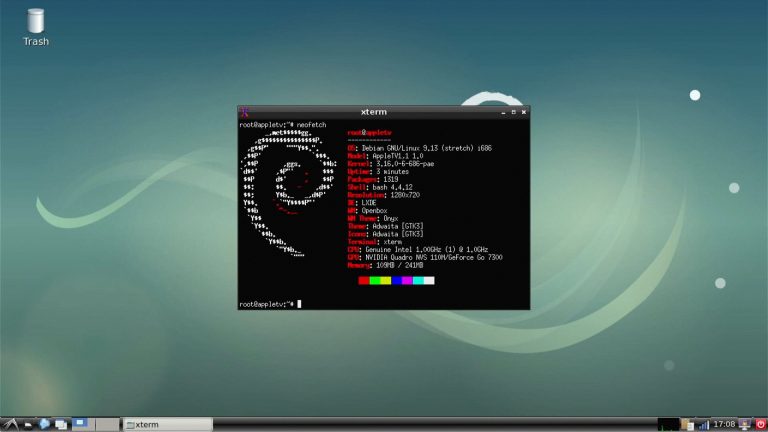
Debian Stretch, LXDE
stretch-gui.img.xz – 2.2GB
md5: 93968d43ebd48428b64e5c3ca10a41b7
Vanilla Debian install. Boots to LXDE. Not much else is configured. This image has to be written to the internal hard drive. It is not designed to boot from an external USB device.
Debian Stretch, RetroArch
stretch-retroarch.img.xz – 2.2GB
md5: 77cf146155c3a56386c95d07c35348dd
RetroArch starts in full screen logged in as user apple. Pressing ‘ESC’ will drop you back to LXDE. This image has to be written to the internal hard drive. It is not designed to boot from an external USB device. Screen resolution set to 1280×720.
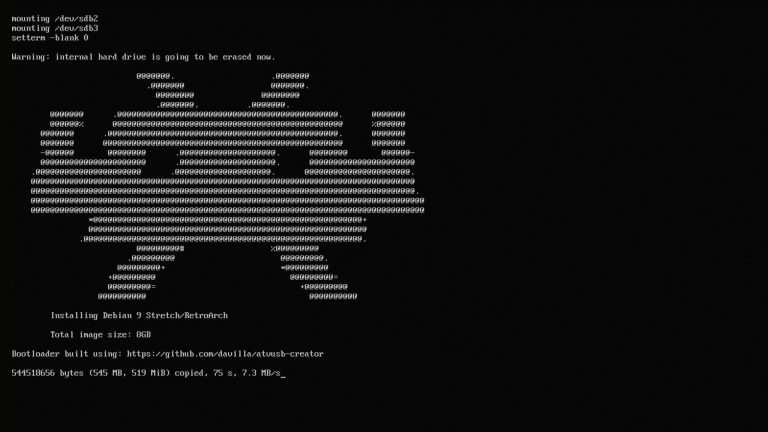
Bootable RetroArch Installer
retroarch-installer.img.xz – 2.5GB
md5: 50428aa6d99359ff422798dfce5cef77
Write to 4GB USB. Installs Debian Stretch and RetroArch to the internal hard drive. It will begin overwriting the internal hard drive on boot without prompting.
Bootable Mac OSX Installer
atv-osx-installer.img.xz – 2.5GB
md5: 74cf292363b17479fce487abf379715f
Write to 4GB USB. Writes Mac OSX Leopard 10.5.5 to the internal hard drive. It will begin overwriting the internal hard drive on boot without prompting.
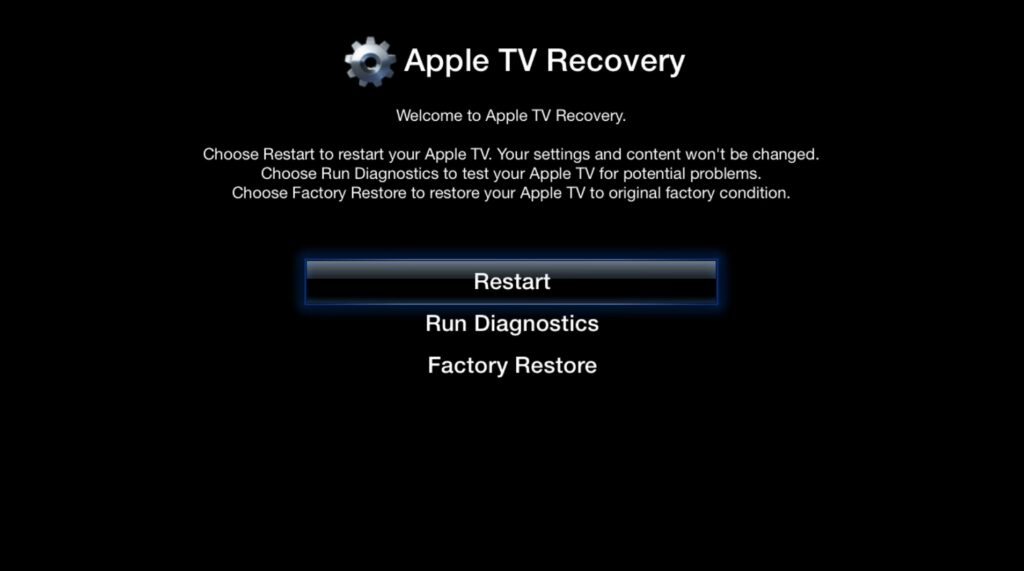
Factory Image 3.0.2
factoryrestore-3.0.2.img.zip – 250MB
md5: c358ca064211222f747da0409c5806ae
Known Issues
Incorrect Colors
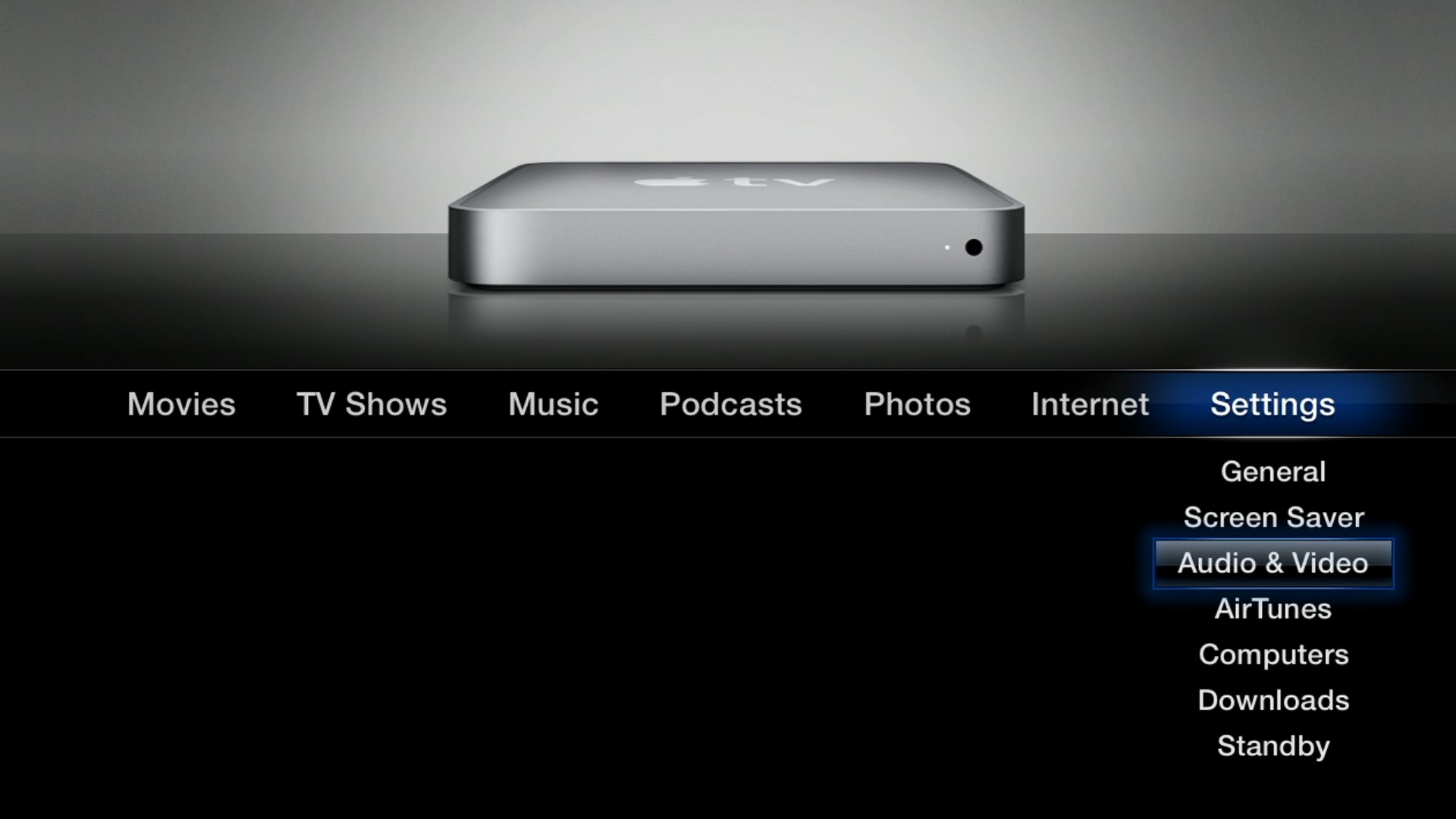
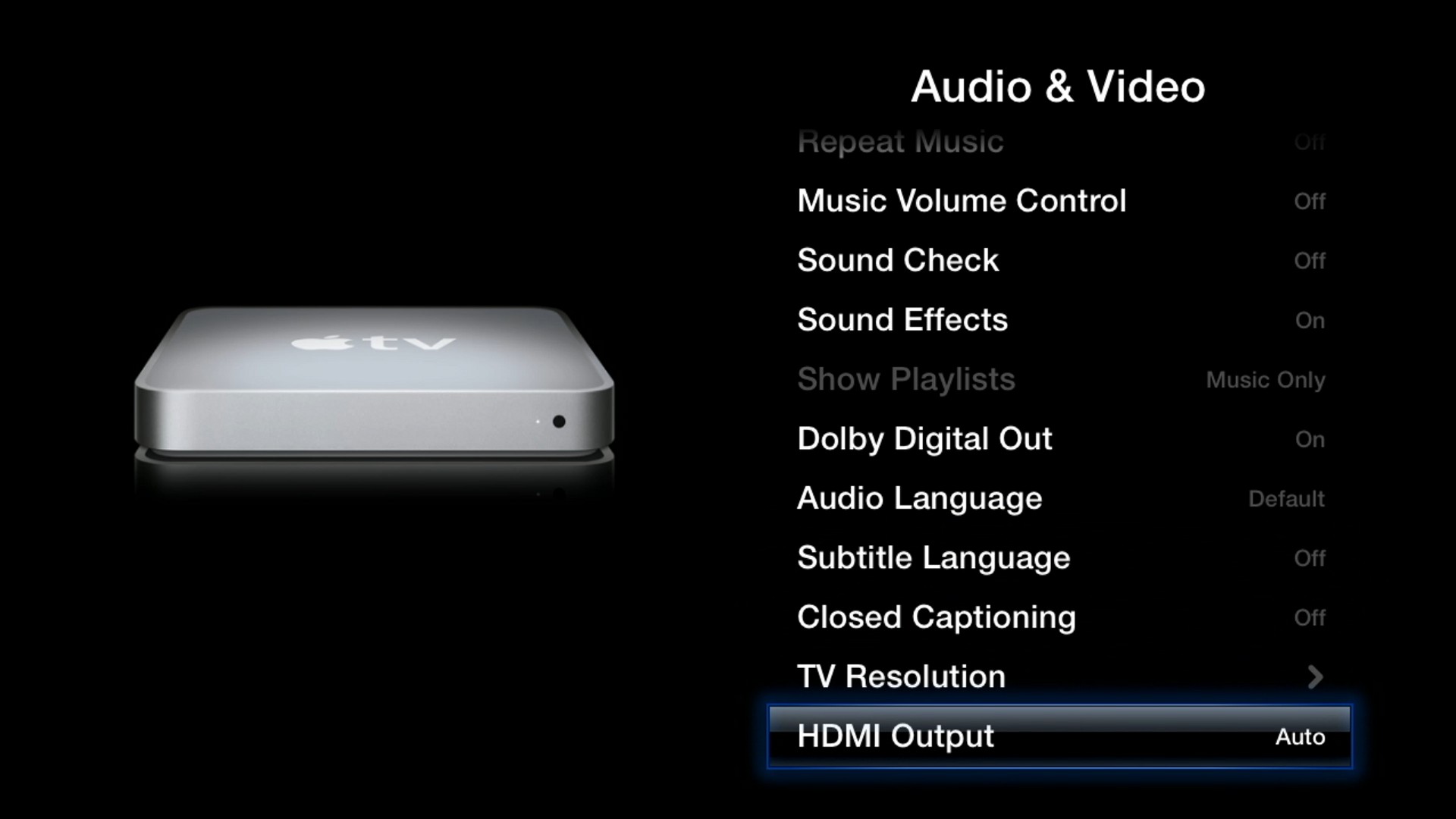
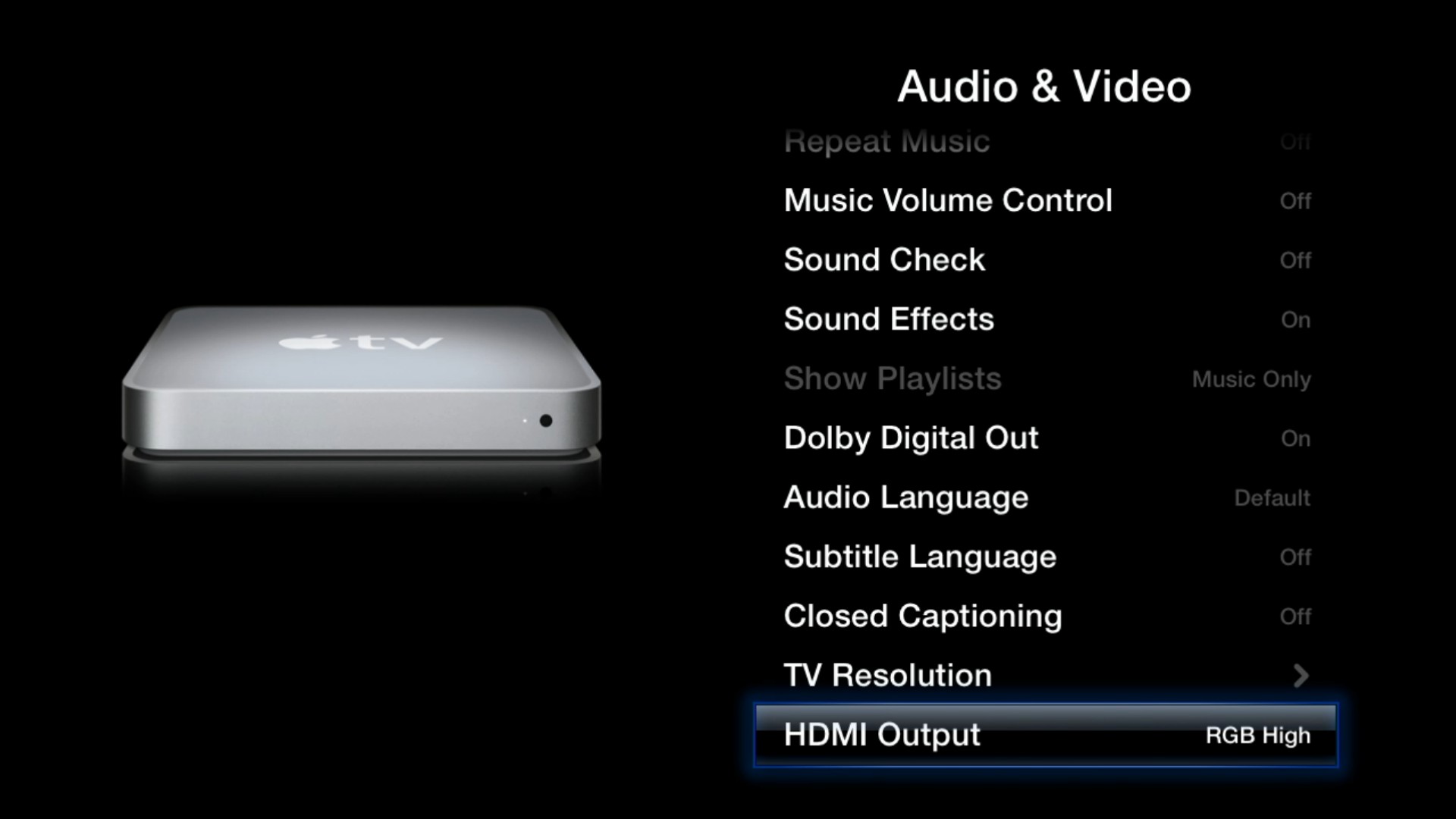
Before doing anything to your AppleTV, check the video output settings while you still have the AppleTV OS installed. I’ve noticed on some units that booting into Linux will have distorted image. Installation may look fine, but you won’t see it until you boot the OS.
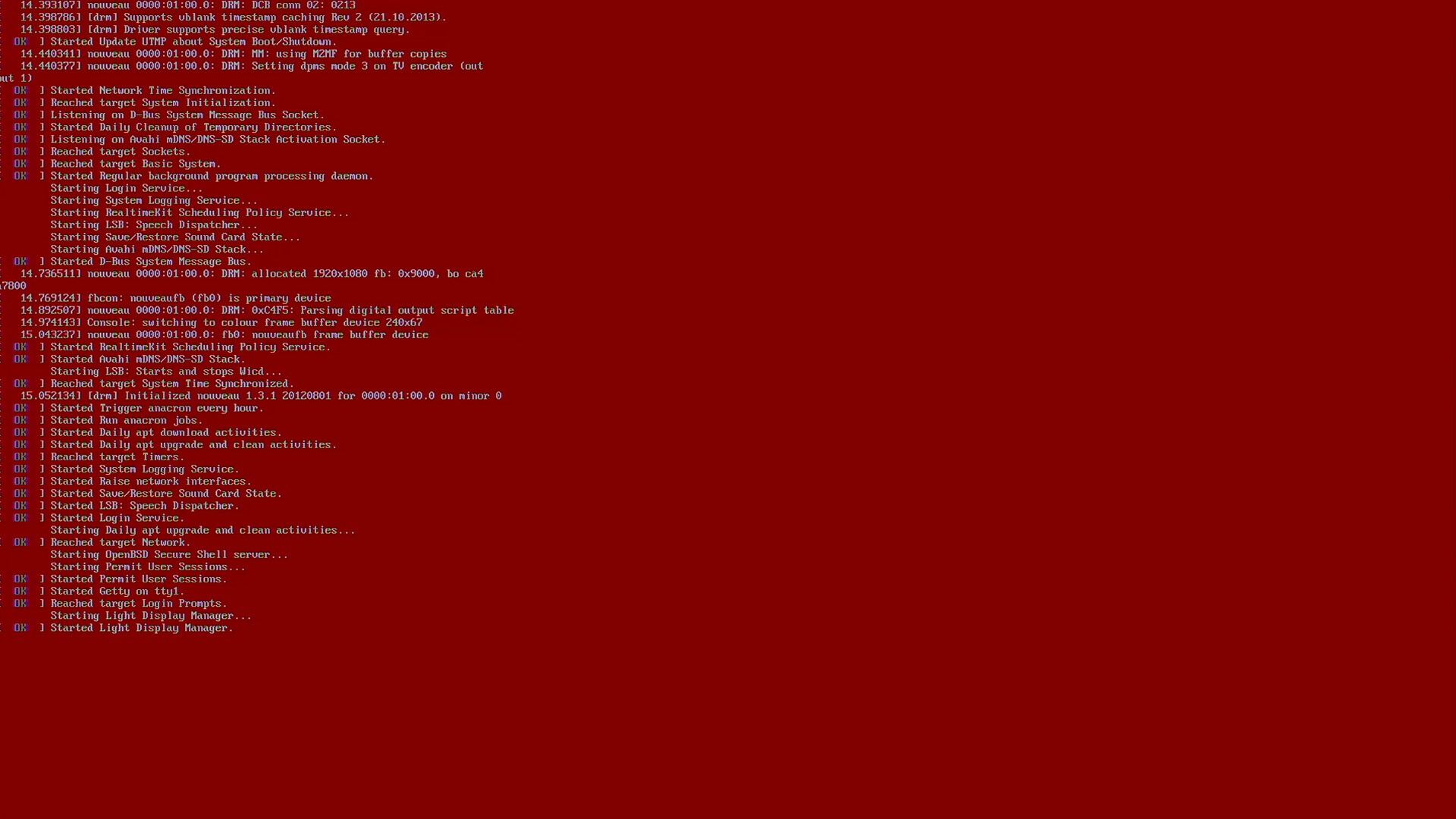
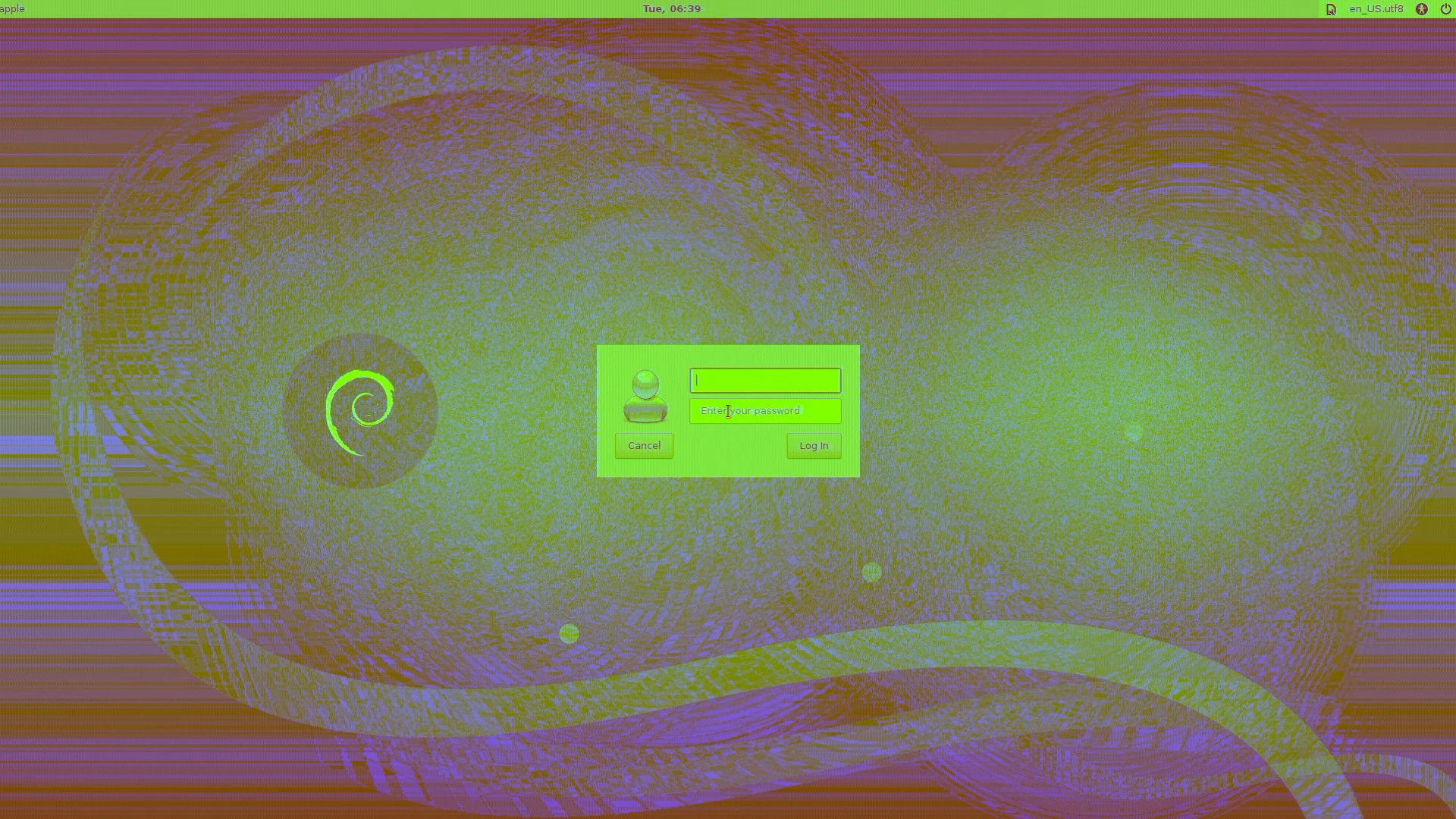
The solution is in the video settings — changing “HDMI Output” from Auto to RGB High. I’m not sure what causes it. I just know that I’ve used Debian Buster on one device and it looked fine, but the latest version of Stretch or Bookworm will have distorted colors.
Partition Table
The Linux downloads write an ~8GB image. Once your system is running, you’ll need to run parted /dev/sdx on your hard drive. On the parted command line, type print and it will prompt you about fixing the errors on the partition table.
You’ll need to use parted to allocate whatever empty space you have on your hard drive into a new partition, or just leave it alone.