
Table of Contents
Introduction
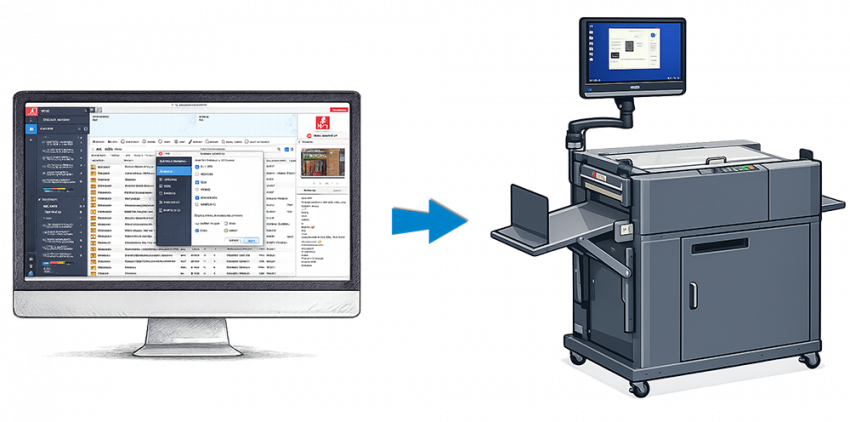
The Fiery Imposer doesn’t support the Duplo DC-616 as a finisher option, but it does support the Duplo DC-618. I’ve created a program that mimics the Duplo DC-618 controller and allows Fiery Imposer to automatically output job files for the Duplo DC-616.
Requirements
- Duplo DC-616
- Duplo DC-616 PC Controller/Dongle
- Windows computer
- Fiery Command Workstation 6.8+
- Fiery Impose License
- Basic knowledge of Windows file sharing
The computer for the Duplo DC-616 and the computer for Fiery will need to be on the same network. A Fiery Impose License is needed. I don’t believe the demo version of the Impose will work.
This method doesn’t really need the Duplo DC-616 software. The program I’ve written, called Duplo DC-616 Integrator, is a stand-alone program that will mimic the Duplo DC-618 and create a Duplo DC-616 job file independent of any other software.
However, the Duplo DC-616 PC Controller software is needed to upload the job to the machine.
Reverse-Engineering the Handshake
The first step was figuring out how the Fiery Imposer communicates with the DC-618 controller software. If the DC-618 control software isn’t running on the Duplo computer, then the Fiery Imposer will error out. The integration isn’t a simple ‘file export’ function, i.e., the Fiery Imposer needs the Duplo Controller to respond to requests.
Wireshark
My first probe into how the handshake worked was a port scan of the Duplo controller. But as far as I could see, there were no extra ports opened. The “communication” was happening entirely through Windows file sharing.
I used Wireshark to capture the traffic between the Fiery and Duplo.
Wireshark Capture Breakdown
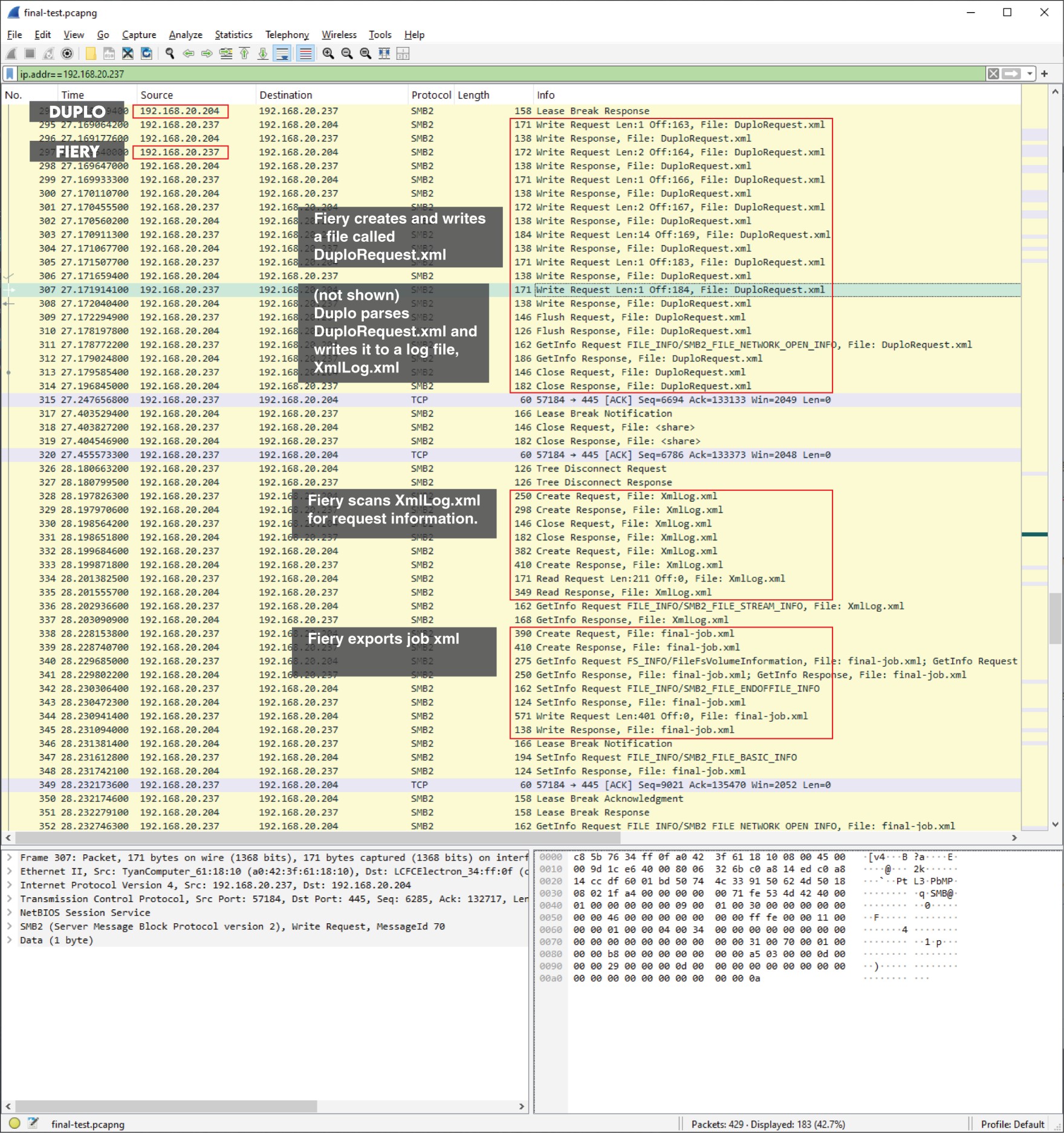
- Fiery Imposer creates a file called DuploRequest.xml in the folder Duplo DC618 XML_Import. This file is used to check if the Duplo Controller is online.
- Duplo Controller parses DuploRequest.xml and writes the data to XmlLog.xml in the Duplo DC618 XML_Export folder
- Duplo Controller removes DuploRequest.xml from Duplo DC618 XML_Import
- Fiery Imposer reads XmlLog.xml — it checks to see if its request has been logged.
- Fiery Imposer creates a job file xml in the folder Duplo DC618 XML_Import. The name of the job file is whatever the user inputs into the Fiery Imposer
- Duplo Controller parses the job xml file and converts it into a job
- Duplo Controller writes the job information to XmlLog.xml
- Duplo Controller removes job file xml from Duplo DC618 XML_Import
- Fiery Imposer reads XmlLog.xml to verify the job information was received
The key takeaway is that the Fiery Imposer will error out if its requests aren’t seen in the XmlLog.xml file. The Duplo Controller will monitor Duplo DC618 XML_Import for requests and the Fiery Imposer will monitor XmlLog.xml for responses.
Example XML Files
DuploRequest.xml
<?xml version="1.0" encoding="UTF-8"?>
<DuploDCRequest>
  <FinisherRequest RequestType="1" Description="Duplo Finisher Status" ImposeHostName="C6085" RequestID="94"/>
</DuploDCRequest>
XmlLog.xml
<?xml version="1.0" encoding="UTF-8"?>
<DuploDCLog>
  <FinisherRequestLog RequestType="1" Response="False" DuploFinisherID="000000000" Device="DC-618" ImposeHostName="C6085" RequestID="94" />
  <JobLog ImposeTemplate="True" Validation="True" JobNo="56" JobName="test-job-56" SavedToJobQueue="False" ImposeHostName="C6085" RequestID="95" HasJobImage="False" />
</DuploDCLog>
There are two log entries here. The FinisherRequestLog entry is data read form DuploRequest.xml. The JobLog entry is the data from the actual job XML file.
The ImposeHostName, C6085, is a Konica Minolta C6085. The hostname and RequestID are used by the Fiery Imposer to identify its own request(s).
Interpreting the Job XML File
The job XML file includes the height/width (pts) of each “block” and its position on the sheet.
In the example below, there is only one crease, but this is relative to each block. In a 3×3 imposition, there are actually three creases — one for each row.
<?xml version="1.0" encoding="UTF-8"?>
<DuploDCJobTemplate JobNo="80" JobName="3.5x4 BC Fold" Device="DC-618" MediaSize="864.000000 1296.000000">
  <ImposeSetting SaveTemplate="true" SaveJobQueue="false" HasJobImage="false" ImposeType="1" ImposeHostName="C6085" RequestID="157"/>
  <CutBlock BlockName="Block_0" BlockSize="252.000000 288.000000" BlockPosition="576.000000 810.000000"/>
  <CutBlock BlockName="Block_1" BlockSize="252.000000 288.000000" BlockPosition="576.000000 504.000000"/>
  <CutBlock BlockName="Block_2" BlockSize="252.000000 288.000000" BlockPosition="576.000000 198.000000"/>
  <CutBlock BlockName="Block_3" BlockSize="252.000000 288.000000" BlockPosition="306.000000 810.000000"/>
  <CutBlock BlockName="Block_4" BlockSize="252.000000 288.000000" BlockPosition="306.000000 504.000000"/>
  <CutBlock BlockName="Block_5" BlockSize="252.000000 288.000000" BlockPosition="306.000000 198.000000"/>
  <CutBlock BlockName="Block_6" BlockSize="252.000000 288.000000" BlockPosition="36.000000 810.000000"/>
  <CutBlock BlockName="Block_7" BlockSize="252.000000 288.000000" BlockPosition="36.000000 504.000000"/>
  <CutBlock BlockName="Block_8" BlockSize="252.000000 288.000000" BlockPosition="36.000000 198.000000"/>
  <Crease PositionY="144.000000" Depth="1" ToolID="0"/>
</DuploDCJobTemplate>
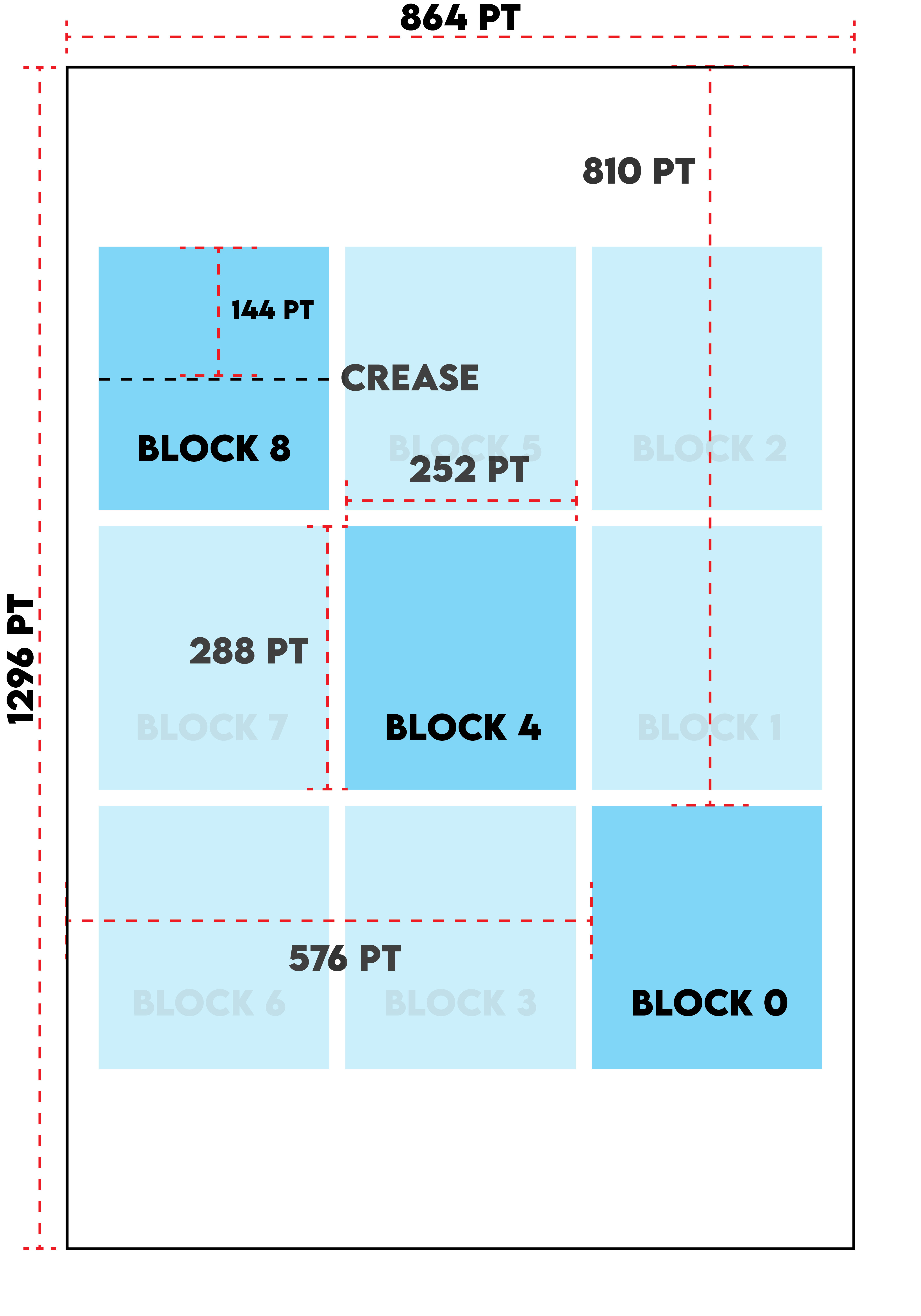
The data from the job XML file will need to be parsed and cuts and slits will need to be computed. The Duplo DC-616 will need the absolute values of slits, cuts, and creases.
Mapping the DC-616 Job File
Once the slits/cuts/creases are computed, all of this data needs to be mapped into a .j616 job file. The points will need to be converted to millimeters.
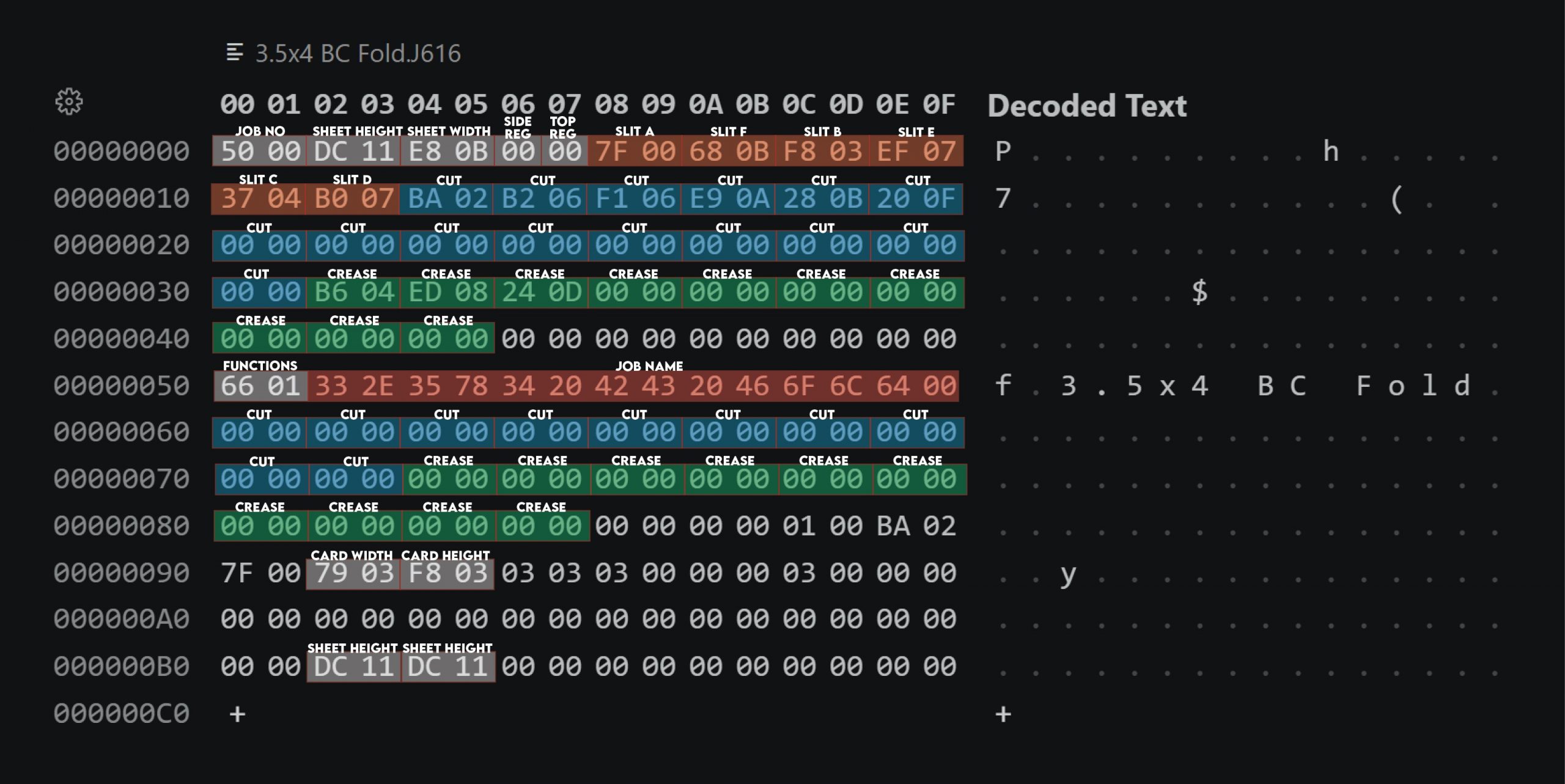
The .j616 job file is 192 bytes in size. All measurement values are in 1/10ths of a millimeter. For example, the above job file is on a 12×18 inch sheet of paper:
- The sheet width is 12 inches
- 12 inches is 304.8mm
- 304.8 * 10 = 3048
- 3048 in hexidecimal is BE8, or 0B E8
- The Duplo CPU interprets data in little-endian
- 0B E8 appears in EEPROM as E8 0B
- The sheet width is stored in offset of 0x04 and 0x05
Configuring the Duplo Controller Computer
Folder Structure
You don’t need to have the Duplo DC-618 Controller software, but you do need to have the folder structure. This folder tree is hard-coded into the program I’ve created.
- Create the folder C:\Duplo DC616 Output
- Create the folder C:\Duplo DC618 XML_Export
- Create the folder C:\Duplo DC618 XML_Import
- Create the folder C:\Duplo Seiko Corp
- Create the folder C:\Duplo Seiko Corp\DC-618 PC Controller V1.04
- Create the file C:\Duplo Seiko Corp\DC-618 PC Controller V1.04\PC_Controller.ini
If you already have the Duplo DC-616 PC Controller installed, then C:\Duplo Seiko Corp should already exist. The file PC_Controller.ini is a blank file. C:\Duplo DC616 Output is the folder where DC-616 job files are saved.
File Sharing
These three folders need to be shared:
- C:\Duplo DC618 XML_Export
- C:\Duplo DC618 XML_Import
- C:\Duplo Seiko Corp\DC-618 PC Controller V1.04
The name of the shares are the names of the folders. C:\Duplo DC618 XML_Import will need read/write permissions enabled — this is the folder the Fiery Imposer will write to.
Access Duplo Controller PC from Fiery Computer
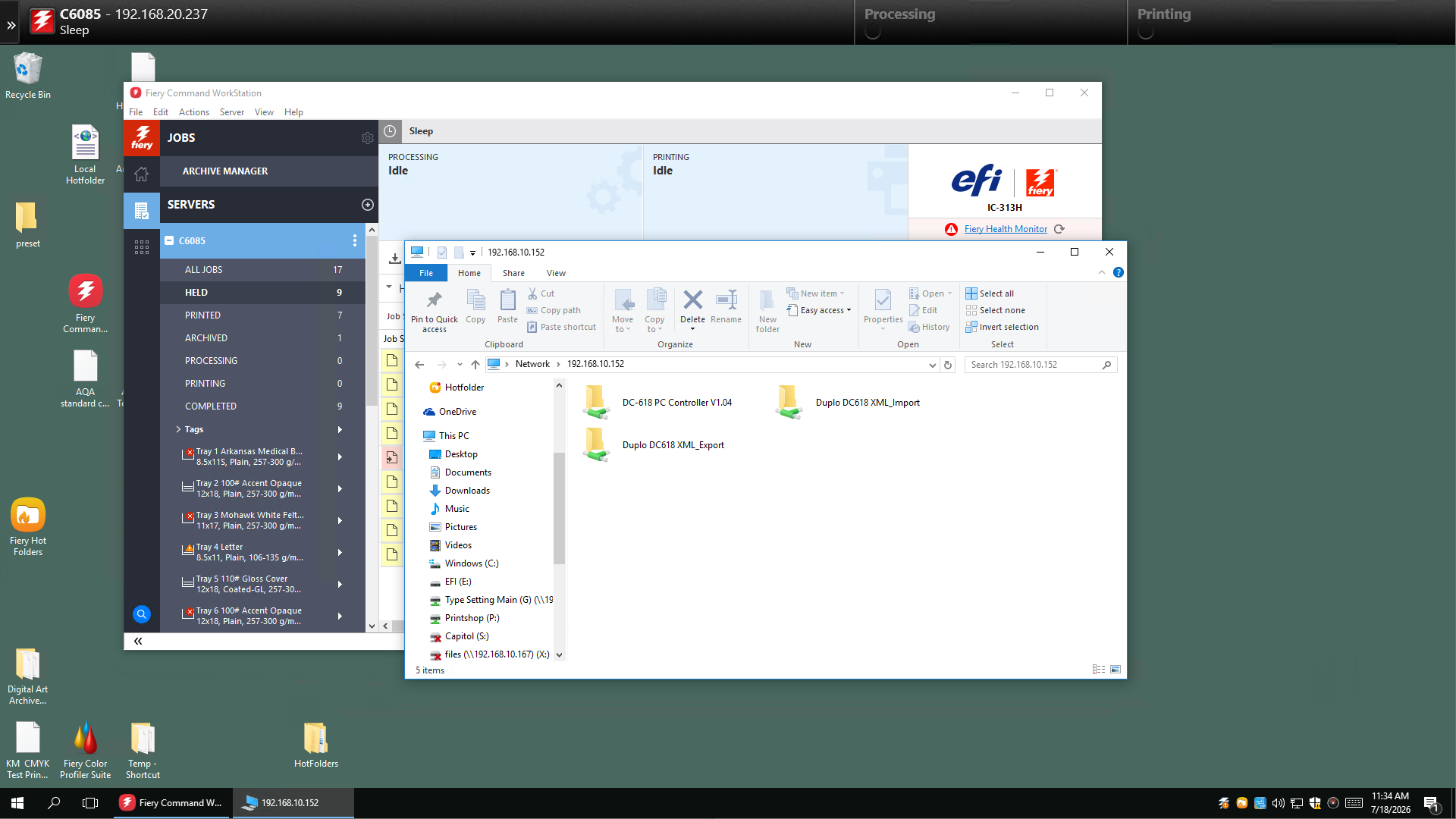
From the Fiery Computer, verify that the shared folders of the Duplo Controller are accessible. Also, verify that you can create a new file inside of Duplo DC618 XML_Import.
Configure the Fiery Imposer
Right Click on any job file and click on Impose to launch the Fiery Imposer.
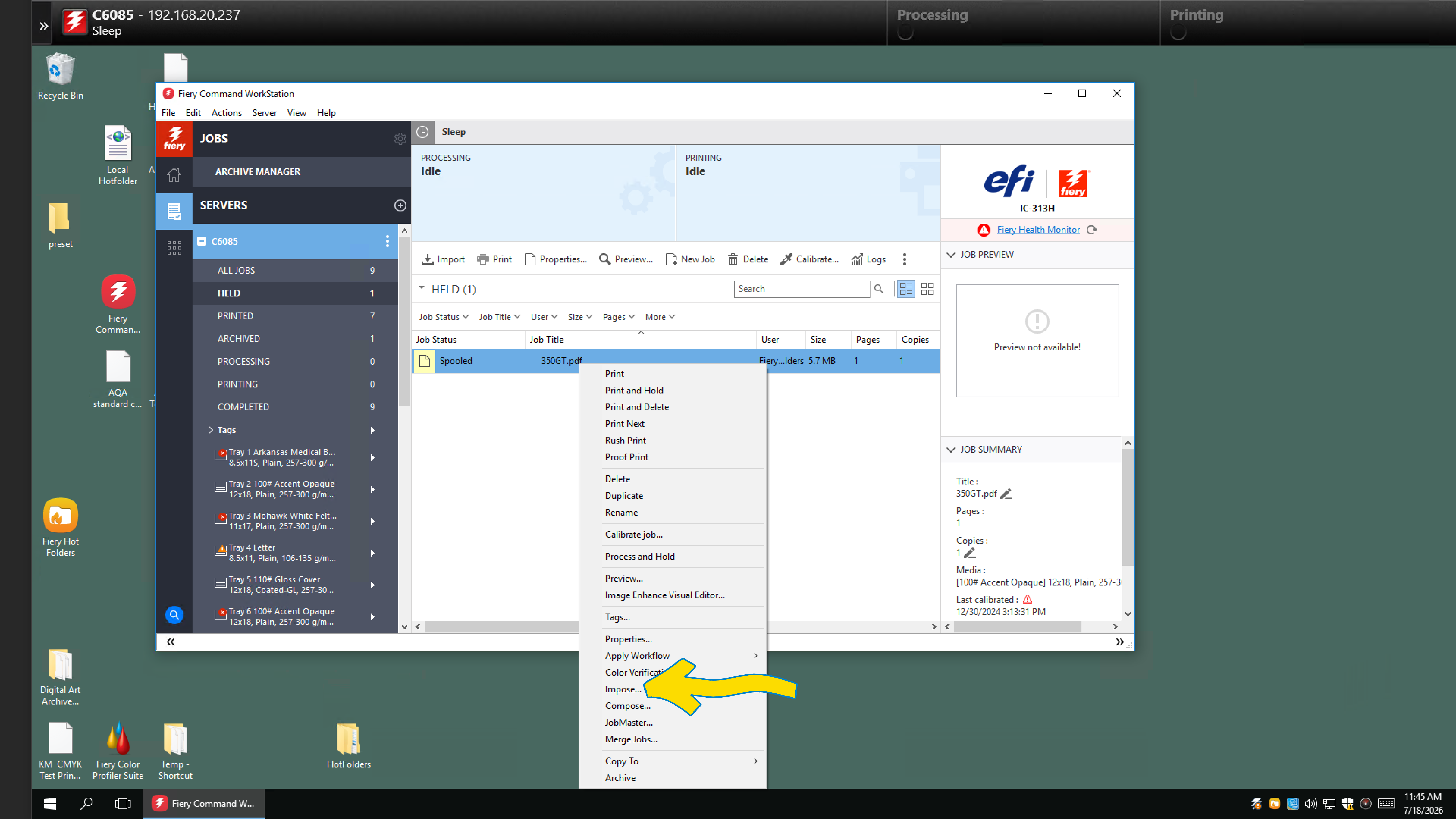
From the Imposer screen, go to Edit -> Preferences
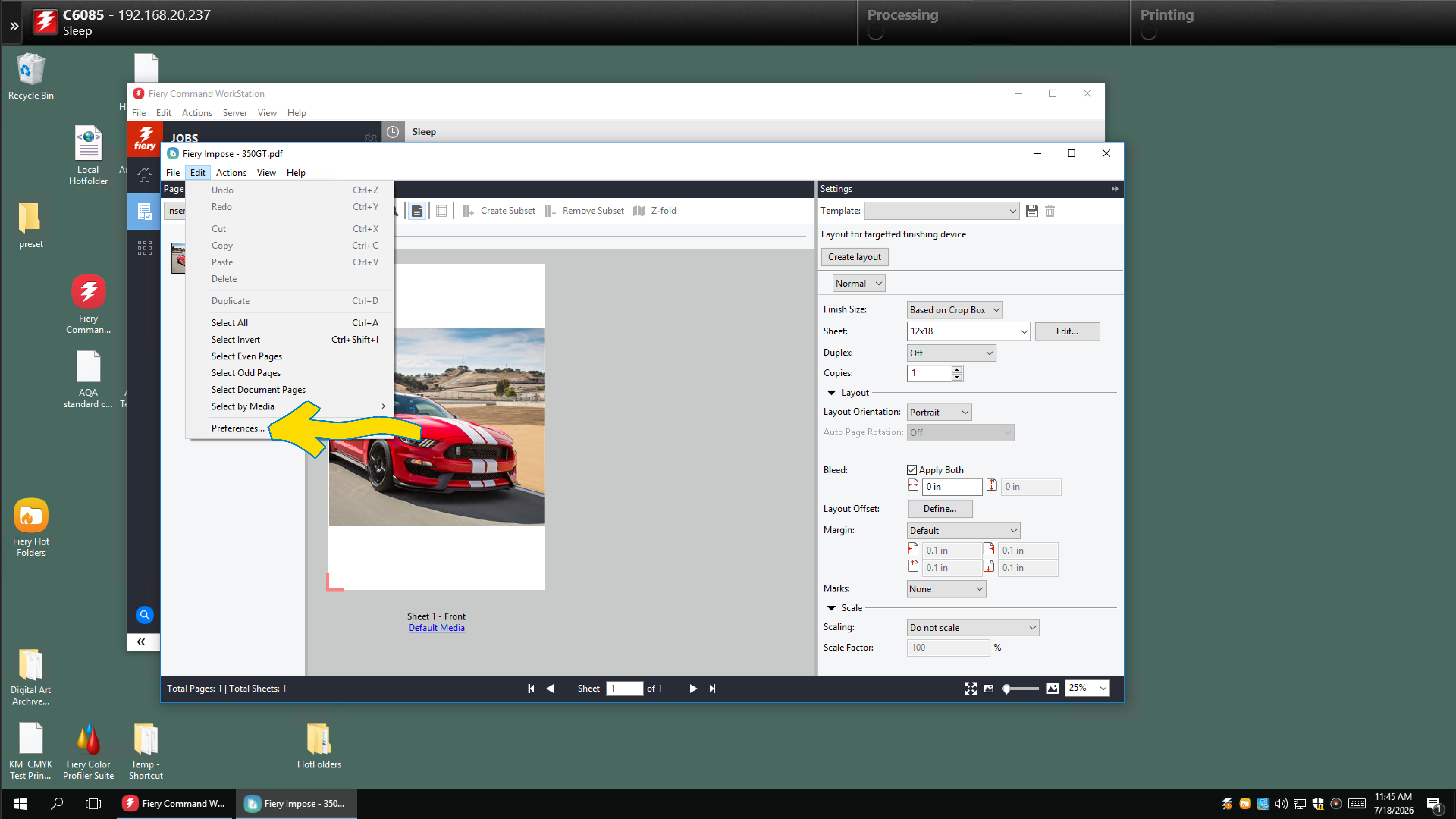
From the Preferences screen,
- Select Finishers from the left pane
- Select Duplo DC-618 from the device drop-down menu
- Type in the IP Address of your Duplo Controller computer
- Browse to the network share for DC-618 PC Controller V1.04
- Hit the Test button.
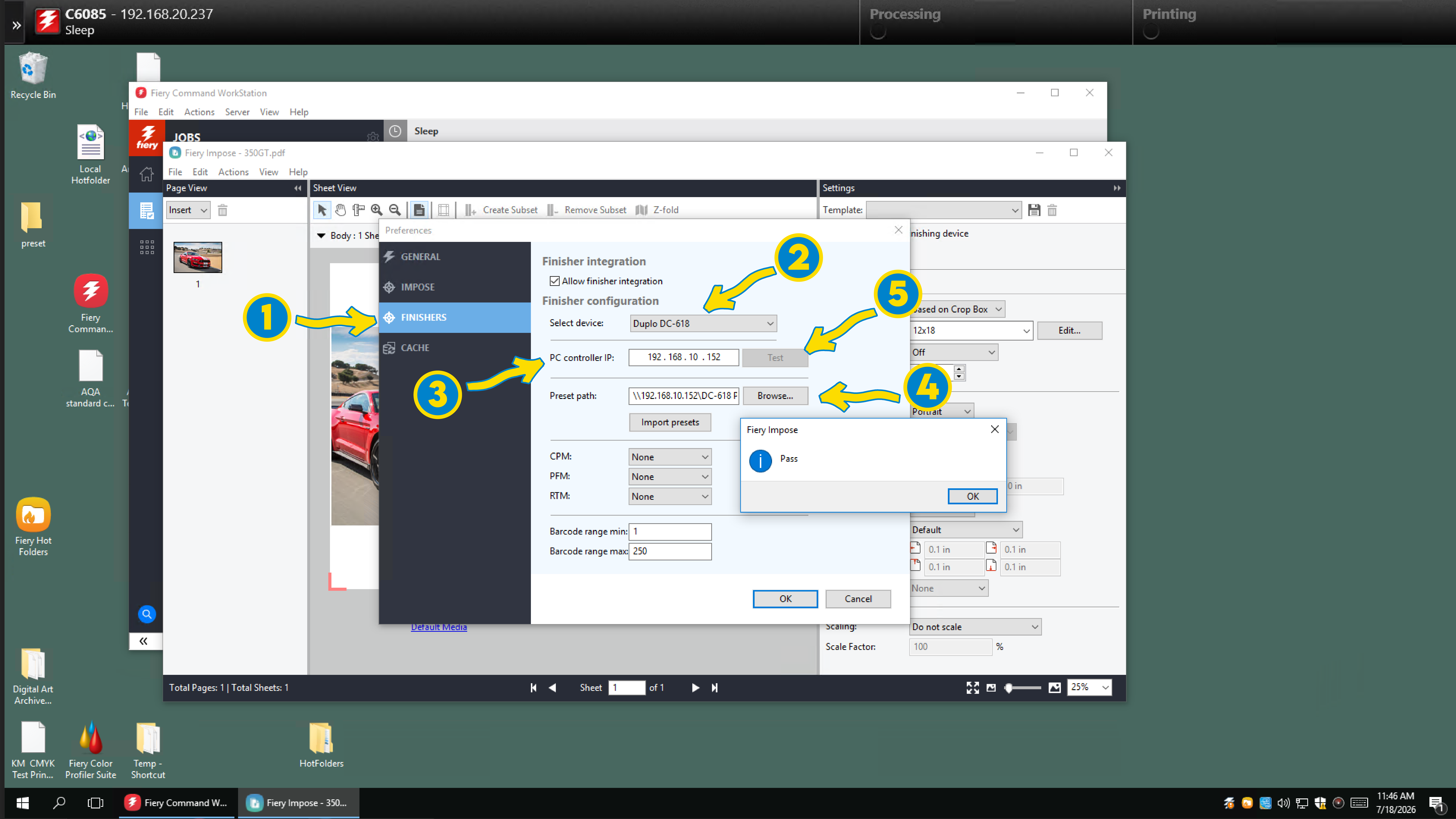
Some versions of Command Workstation won’t have a separate input for the IP Address and will instead just ask for the PC Controller Path.
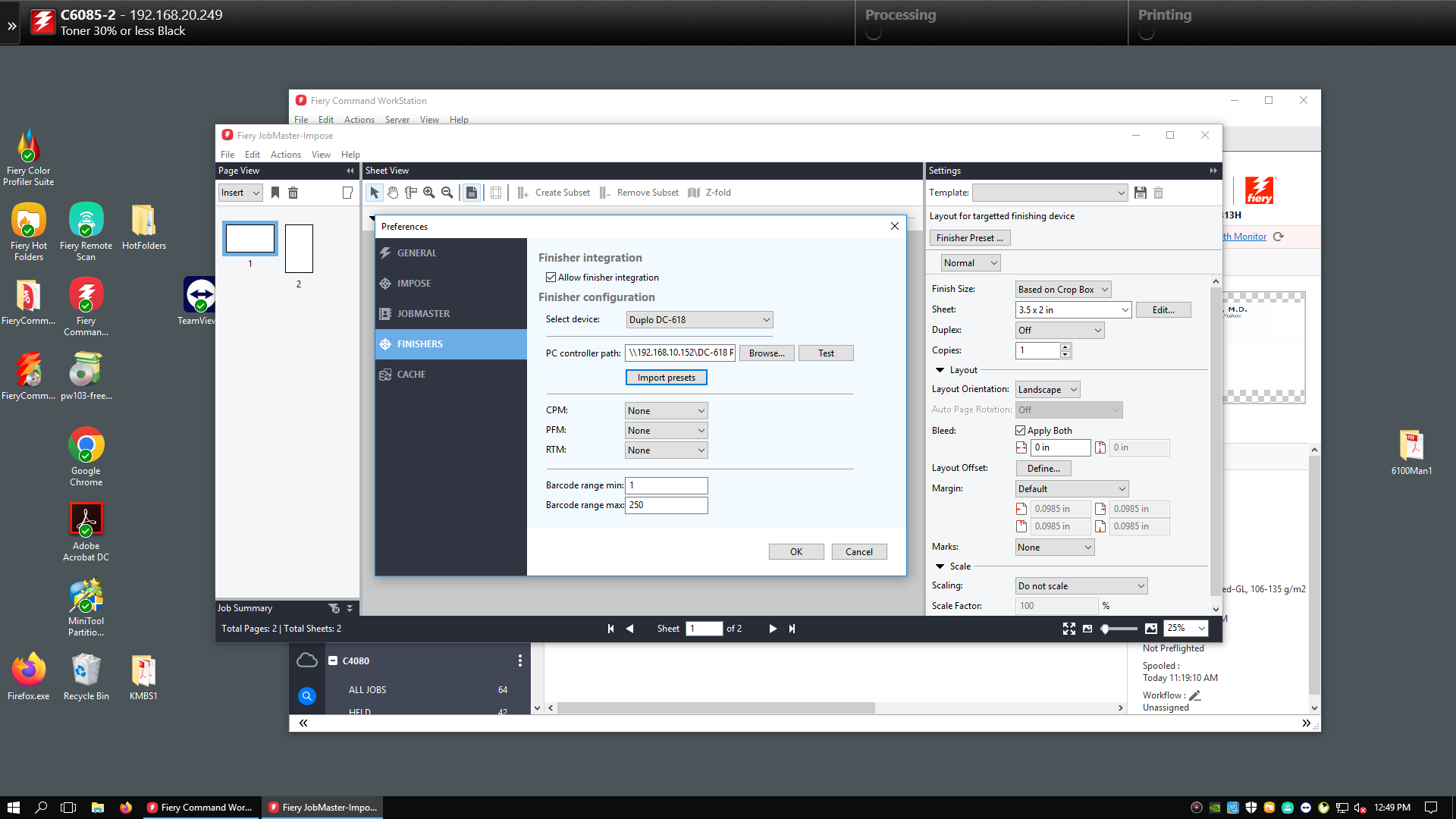
When the “Test” is performed, the Fiery Imposer will check the file structure to verify the computer is a Duplo DC-618 Controller.
After a successful test, you will need to close the Fiery Imposer for finisher settings to take effect.
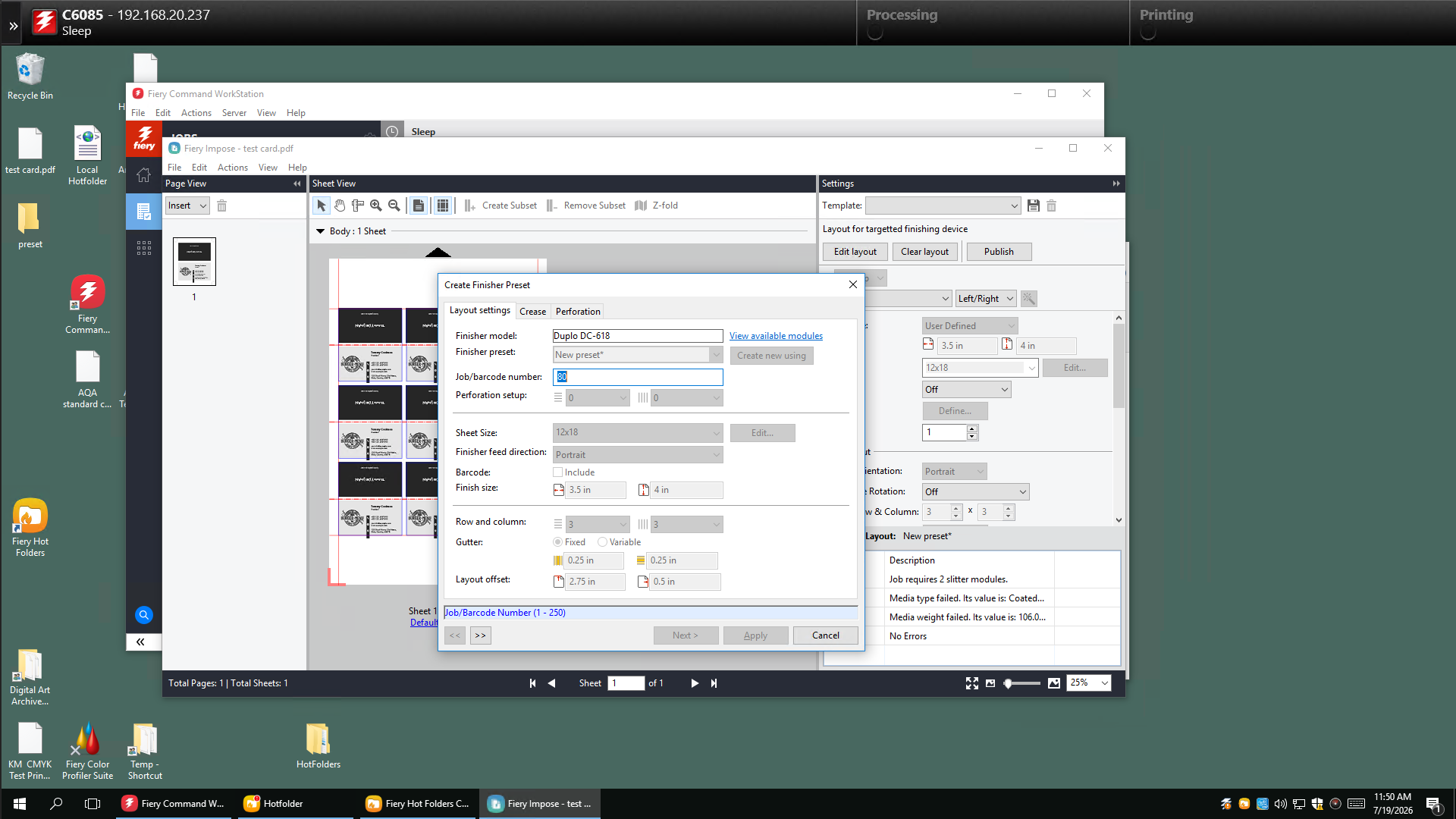
The next time you launch the Imposer, a button labeled Create layout will appear near the top of the settings pane. It will open up the layout settings for the job. After setting everything up, hitting Apply will take you back to the Fiery Imposer. The settings should transfer over, but you usually need to change the Gangup setting.
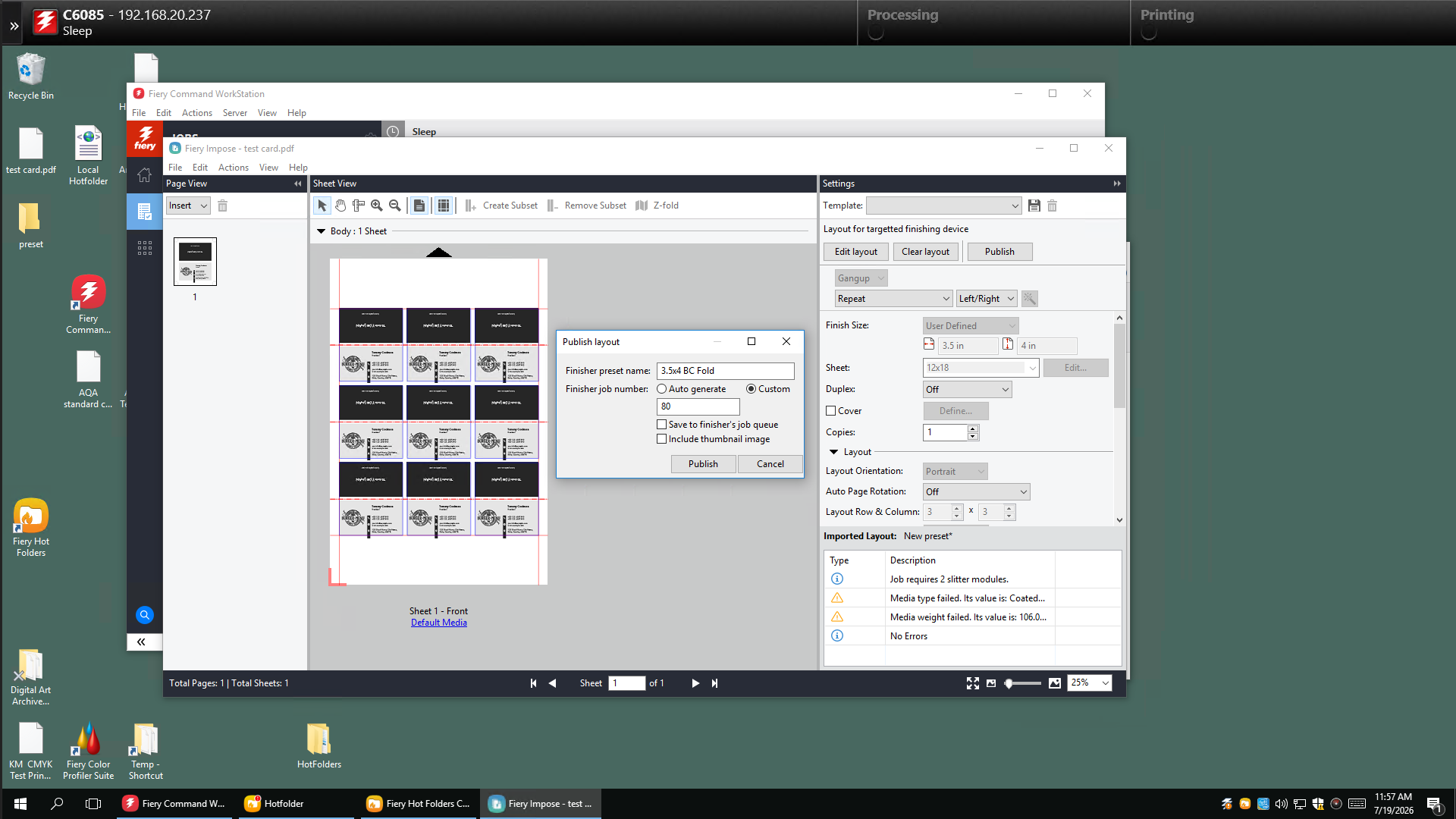
Hitting the Publish button will bring up a second dialog where you enter the “preset name” and publish the job
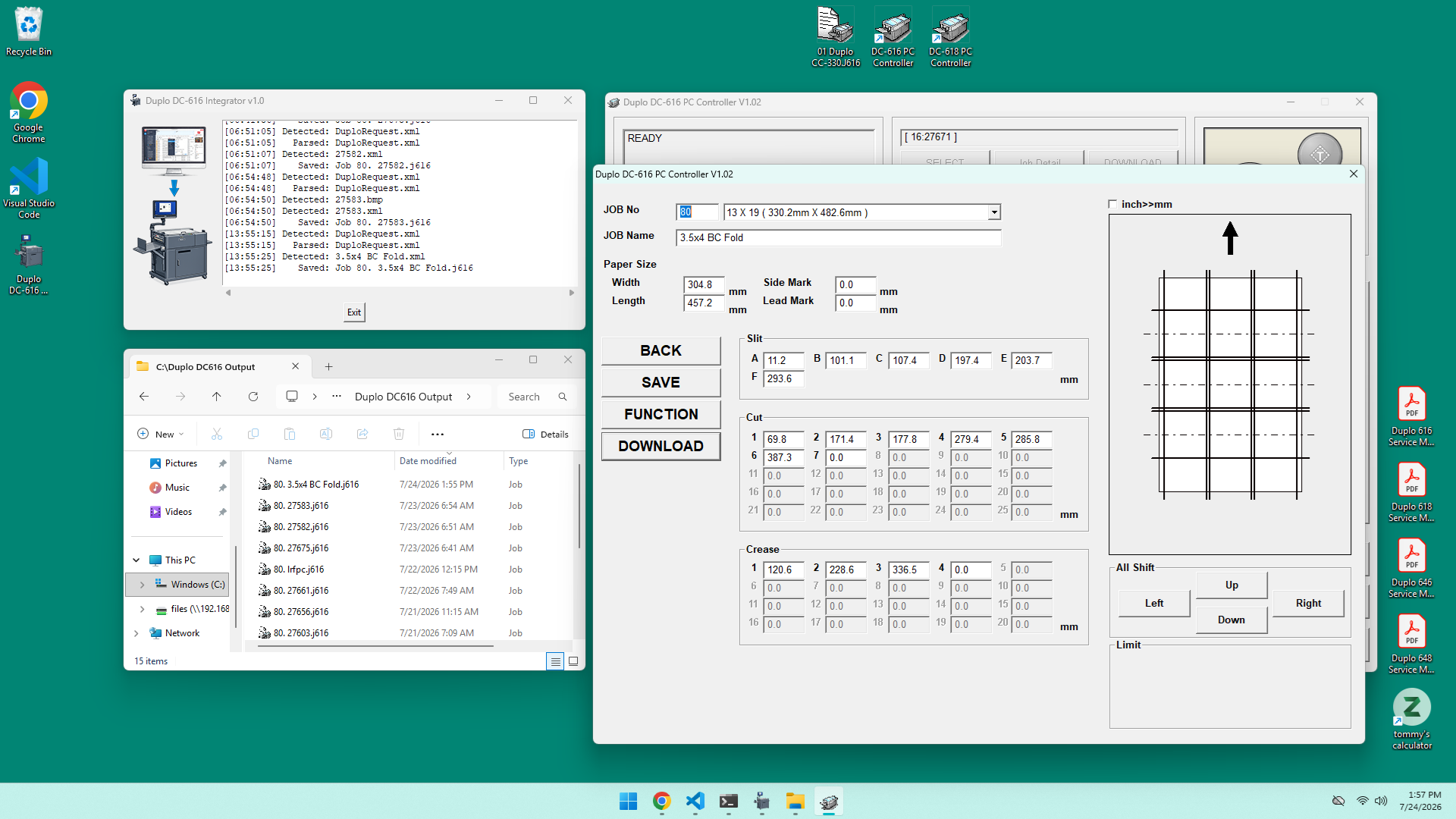
The Duplo DC-616 Integrator software should process the file in a few seconds and you can open it in the Duplo DC-616 PC Controller software and upload it to the machine.
Only XML files are parsed. If you export an image preview, the bitmap image generated is ignored.
Download the Software
Duplo DC-616 Integrator v1.0.exe – 11.4MiB
Privacy Statement: The software package, Duplo DC-616 Integrator, does not record any information or track any type of data. Its scope is limited to the files and folders necessary for interacting with Fiery Command Workstation, Fiery Imposer, and the Duplo DC-616 PC Controller software. There is no persistent data saved between sessions other than the job files and XML files it creates.
Final Thoughts
In theory, any finishing device can be integrated into the Fiery Imposer. Fiery itself only exports the job XML file. The only hurdle is mapping out the job file of the target machine and then translating slits, cuts, etc. into a compatible job file.