

Rename Artboards with a Text File
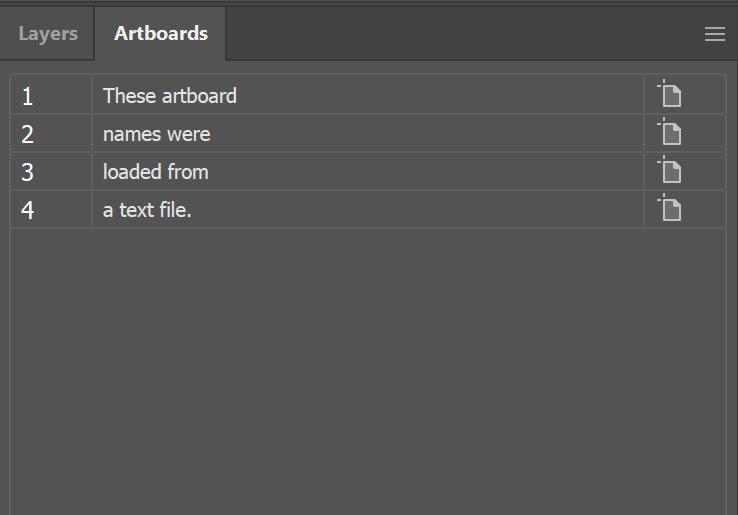
This script allows you to open a text file with a list of names. The artboards in the active document will be named according to the text file contents. The number of artboards have to match the number of entries in your text file.
This is useful when using “Export for Screens.” When exporting separate PDF files (or whatever format), the filenames will come from the artboard names.
// Adobe Illustrator Javascript
// Rename all artboards using text file, line delimited

if(app.documents.length > 0){
    var docRef = app.activeDocument;

    var file = File.openDialog ("Select TXT...", "*.txt");
    file.encoding = 'UTF8';
    file.open('r');
    var contents = file.read();
    var contentArray = contents.split('\n');
    file.close();

    if(contentArray.length == docRef.artboards.length){
        for(var i=0;i<docRef.artboards.length;i++){
            docRef.artboards[i].name = contentArray[i];
        }
    }
    else{
        alert("Error: The number of artboards need to\nmatch the number of lines in your text file.");
    }
}
else{
    alert("Error: No active document");
}
Page Numbering
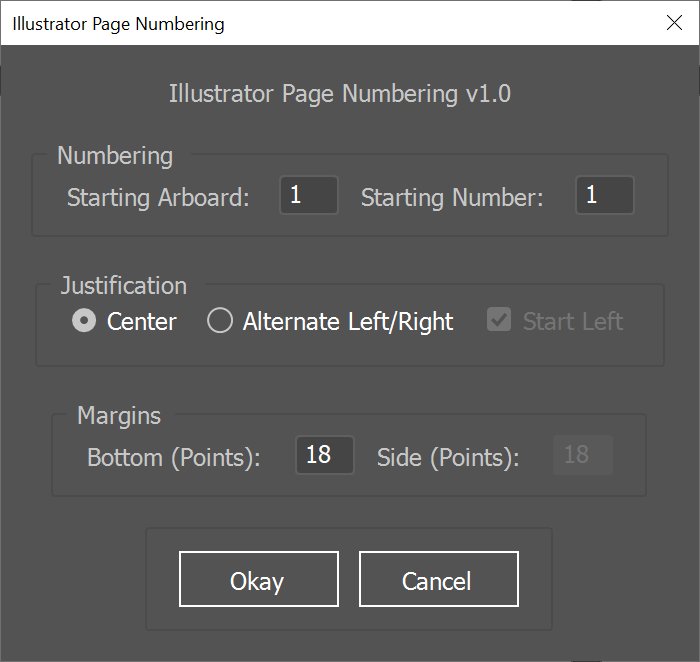
I do my books InDesign, but if the book is small enough, I will do it in Illustrator. This script will create a new layer and add numbers according to the settings. The numbers are on a layer by themselves to make styling them easier.
if(app.documents.length > 0){
    var docRef = app.activeDocument;
    showDialogBox();
}
else{
    alert("There is no document open");
}

function iterate(x){
    var collection;
    for(var property in x){
        collection += property+"\n";
    }

    alert(collection);
}

function showDialogBox(){
    var dlg = new Window('dialog', 'Illustrator Page Numbering');

    dlg.add("statictext", undefined, 'Illustrator Page Numbering v1.0');

    var groupOne = dlg.add("group");
    var panelOne = groupOne.add("panel", undefined, 'Numbering');
    panelOne.add("statictext",undefined,"Starting Arboard:");
    var txtStartingArboard = panelOne.add("edittext",[ 0, 0, 30, 20 ], 1);
    panelOne.add("statictext",undefined,"Starting Number:");
    var txtStartingNumber = panelOne.add("edittext",[ 0, 0, 30, 20 ], 1);

    var groupTwo = dlg.add("group");
    panelTwo = groupTwo.add("panel", undefined, 'Justification');
    var radioOne = panelTwo.add("radiobutton", undefined, "Center");
    var radioTwo = panelTwo.add("radiobutton", undefined, "Alternate Left/Right");
    var checkboxOne = panelTwo.add("checkbox", undefined, "Start Left");

    var groupThree = dlg.add("group");
    panelThree = groupThree.add("panel", undefined, 'Margins');
    panelThree.add("statictext",undefined,"Bottom (Points):");
    var txtMarginBottom = panelThree.add("edittext",[ 0, 0, 30, 20 ], 18);
    panelThree.add("statictext",undefined,"Side (Points):");
    var txtMarginSide = panelThree.add("edittext",[ 0, 0, 30, 20 ], 18);

    radioOne.value = true;
    checkboxOne.value = true;
    checkboxOne.enabled = false;
    txtMarginSide.enabled = false;

    radioOne.onClick = function(){
        // Center radio button
        checkboxOne.enabled = radioTwo ? false : true;
        txtMarginSide.enabled = false;
    }

    radioTwo.onClick = function(){
        // Alternate left/right radio button
        checkboxOne.enabled = radioTwo ? true : false;
        txtMarginSide.enabled = true;
    }

    panelButtons = dlg.add("panel", undefined, '' );
    panelButtons.executeBtn = panelButtons.add( "button", undefined, "Okay" );
    panelButtons.cancelBtn = panelButtons.add( "button", undefined, "Cancel", { name: "cancel" } );

    panelOne.orientation = "row";
    panelTwo.orientation = "row";
    panelThree.orientation = "row";
    panelButtons.orientation = "row";

    panelButtons.executeBtn.onClick = function(){
        numberPages(txtStartingArboard.text, txtStartingNumber.text, radioOne.value, checkboxOne.value, txtMarginBottom.text, txtMarginSide.text);
        dlg.hide();
    }

    dlg.show();
}

function numberPages(artboard, start, center, leftRight, marginBottom, marginSide){

    side = leftRight == true ? 'left' : 'right';

    // Delete any existing "Page Numbers" layer.
    for(var i=0;i<docRef.layers.length;i++){
        if(docRef.layers[i].name == 'Page Numbers'){
            docRef.layers[i].remove();
        };
    }

    // Create new layer
    var newLayer = docRef.layers.add();

    newLayer.name = "Page Numbers";
    artboard--;
    for(var i=artboard;i < docRef.artboards.length;i++){
        var artrect = docRef.artboards[i].artboardRect;
        var width = artrect[2] - artrect[0];
        var height = artrect[1] - artrect[3];

        var textFrame = docRef.textFrames.add();
        textFramesCount = docRef.textFrames.length;
        textFrame.contents = start;

        if(center == true){
            textFrame.textRange.justification = Justification.CENTER;
            textFrame.left = artrect[0] + (width/2);
        }
        else{
            if(side == 'left'){
                textFrame.left = artrect[0] + parseInt(marginSide, 10);
                textFrame.textRange.justification = Justification.LEFT;
            }
            else{
                textFrame.left = artrect[2] - parseInt(marginSide, 10);
                textFrame.textRange.justification = Justification.RIGHT;
            }

            side = side == 'left' ? 'right' : 'left';
        }

        textFrame.top = artrect[3] + parseInt(marginBottom, 10) + 12;
        start++;
    }
}
Search and Replace
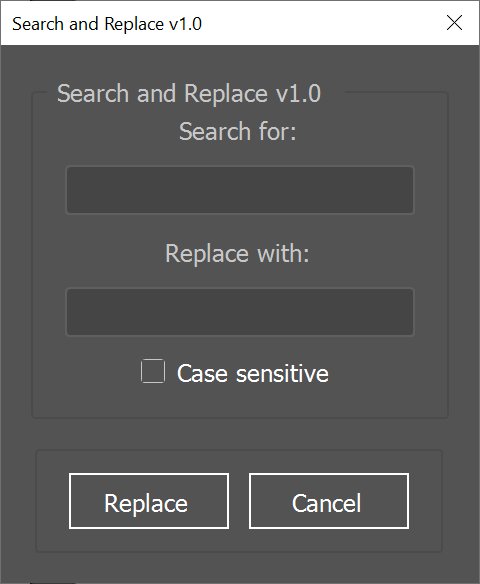
Illustrator has “Find and Replace” and this script works in a similar way. I use this code as a basis for more complex Regex search and replace operations or for instances where I need to change the styling of a word or phrase, rather than the contents.
This will iterate through all your text, search for a word, and then replace it. When search and replace is performed on a single word, formatting is usually maintained. If search and replace is done on a string of words, formatting may be lost. This script does not take into account the style of each individual word. Search and replace will apply to all text, even locked items.
var docRef = app.activeDocument;
var source, destination;

var dlg = new Window('dialog', 'Search and Replace v1.0');
dlg.msgPnl = dlg.add('panel', undefined, 'Search and Replace v1.0');
dlg.msgPnl.titleOne = dlg.msgPnl.add('statictext', undefined,'Search for:');
dlg.msgPnl.editOne = dlg.msgPnl.add('edittext', [ 25, 15, 200, 40 ],'');

dlg.msgPnl.titleTwo = dlg.msgPnl.add('statictext', undefined,'Replace with:');
dlg.msgPnl.editTwo = dlg.msgPnl.add('edittext', [ 25, 15, 200, 40 ],'');

dlg.btnPnl = dlg.add( "panel", undefined, '' );


dlg.btnPnl.testBtn = dlg.btnPnl.add( "button", undefined, "Replace" );
dlg.btnPnl.cancelBtn = dlg.btnPnl.add( "button", undefined, "Cancel", { name: "cancel" } );
var checkboxOne = dlg.msgPnl.add("checkbox", undefined, "Case sensitive");

dlg.btnPnl.testBtn.onClick = function(){
    source = dlg.msgPnl.editOne.text;
    destination = dlg.msgPnl.editTwo.text;
    dlg.hide();
}
dlg.btnPnl.orientation = "row";
dlg.show();

var count=0;
var loopCount = 1;

if(typeof source !== 'undefined' && typeof destination !== 'undefined' && source !== '' && destination !== ''){

    var words = source.split(' ');

    if(words.length == 1){
        // single word
        for(var i=0;i<docRef.textFrames.length;i++){
            for (var x=0;x<docRef.textFrames[i].words.length;x++){
                if(checkboxOne.value == true){
                    if(docRef.textFrames[i].words[x].contents == source){
                        docRef.textFrames[i].words[x].contents = destination;
                        count++;
                    }
                }
                else{
                    if(docRef.textFrames[i].words[x].contents.toUpperCase() == source.toUpperCase()){
                        docRef.textFrames[i].words[x].contents = destination;
                        count++;
                    }
                }
            }
        }
    }
    else{
        while(loopCount != 0){
            for(var i=0;i<docRef.textFrames.length;i++){
                loopCount = 0;
                if(checkboxOne.value == true){
                    if(docRef.textFrames[i].textRange.contents.match(source)){
                        docRef.textFrames[i].textRange.contents = docRef.textFrames[i].textRange.contents.replace(source,destination);
                        loopCount++;
                        count++;
                    }
                }
                else{
                    if(docRef.textFrames[i].textRange.contents.toUpperCase().match(source.toUpperCase())){
                        docRef.textFrames[i].textRange.contents = docRef.textFrames[i].textRange.contents.replace(source,destination);
                        loopCount++;
                        count++;
                    }
                }
            }
        }
    }

    alert(count+" instances replaced");
}
Variable Imaging
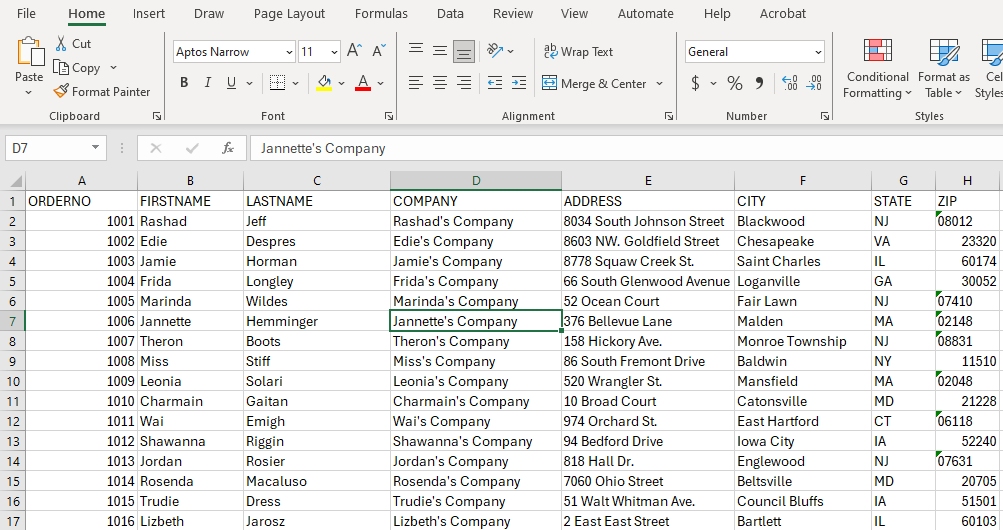
This will map data from a Tab-Delimited file. You start with a single artboard in Illustrator. The placeholder text will need to be EXACTLY the same as the column headers in the tab delimited file.
The script will open the tab-delimited file, parse the headers, and change the placeholder text to match your file. New artboards are automatically created to match the number of records in your file.
The script will hang on very complex artwork or if you have a lot of records, but it usually works if you’re patient. I’ve tested this on 500 business cards.
For faster results, I would suggest generating your variable text first with the script, then paste any remaining artwork separately with Edit > Paste on All Artboards.
InDesign’s ‘Data Merge’ is much more performant, but I feel Illustrator is a better tool for styling text.